
Starting an OS installation is a big change for any computer. It lets users refresh their experience by switching to different systems like Windows, macOS, or Linux.
It’s important to plan well and do things right. You need to back up all your data and check if your computer’s hardware works with the new system.
If you want to change from Linux to Windows, Microsoft has clear steps on how to manage partitions and install Windows.
This guide will help you through each important step. It aims to make your computer OS change smooth and successful, without losing any data or facing technical issues.
Understanding Operating System Compatibility and Requirements
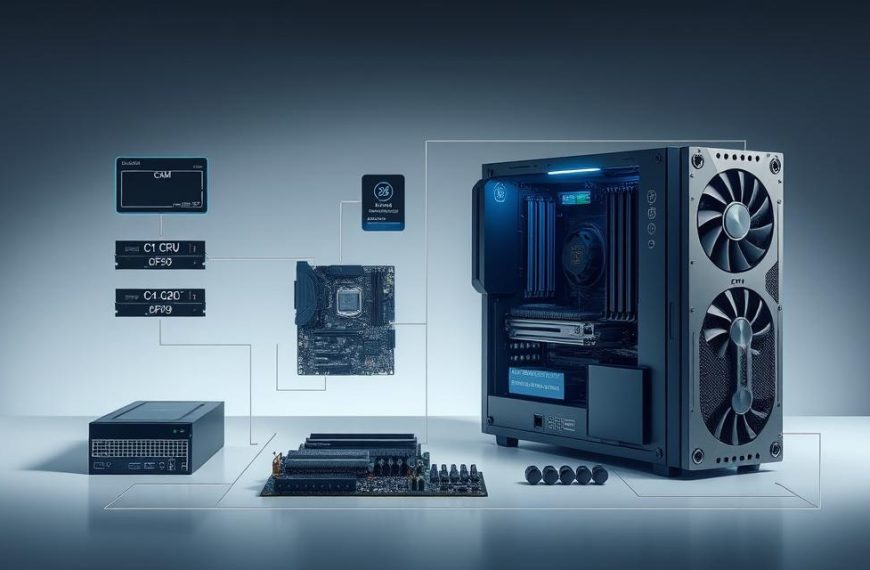
Before you try to install a new operating system, it’s important to know not all computers can run every OS. Your computer’s hardware decides which OS will work well. Checking this first saves time and avoids hardware problems.
Assessing Your Computer’s Hardware Compatibility
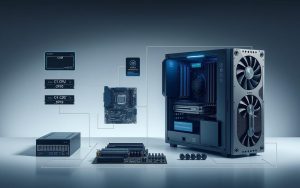
First, look at your computer’s specs. You need to check a few key parts to see if they match the OS you want:
- Processor type and speed
- Amount of installed RAM
- Available storage space
- Graphics capabilities
- Firmware type (BIOS or UEFI)
Windows shows this info in System Information. macOS users can check in About This Mac. Linux users can use terminal commands like lscpu and free -h.
System Requirements for Windows, macOS and Linux Distributions
Each OS has its own system requirements for the best performance. Knowing these specs helps for a smooth install and stable use.
Windows 11 specs are the most strict:
- 64-bit processor with 1 GHz or faster
- 4 GB RAM minimum
- 64 GB storage space
- UEFI firmware with Secure Boot capability
- TPM 2.0 security module
Windows 10 is more flexible, needing a 1 GHz processor, 1-2 GB RAM, and 16-20 GB storage.
macOS only works on Apple devices, with each version listing supported Macs. Installing on non-Apple devices needs special knowledge and custom kernels.
Linux distributions are the most flexible. Linux Ubuntu requirements are:
- 2 GHz dual-core processor
- 4 GB RAM
- 25 GB hard drive space
Other Linux distributions have different needs. Linux Mint needs 2 GB RAM and 20 GB storage. Fedora requires 2 GB RAM and 25 GB space. Arch Linux is the lightest, working with 512 MB RAM and 2 GB storage.
Always check the latest requirements from official sources before installing. These specs often change with new OS versions.
Essential Preparations Before Installation
Before you start installing your new operating system, it’s important to do some groundwork. This groundwork helps ensure a smooth transition and keeps your important data safe. These steps are key to a successful changeover.
Creating Complete Backups of Your Data
First, protect your personal files. The installation process might wipe your hard drive clean. So, backing up your data is a must.
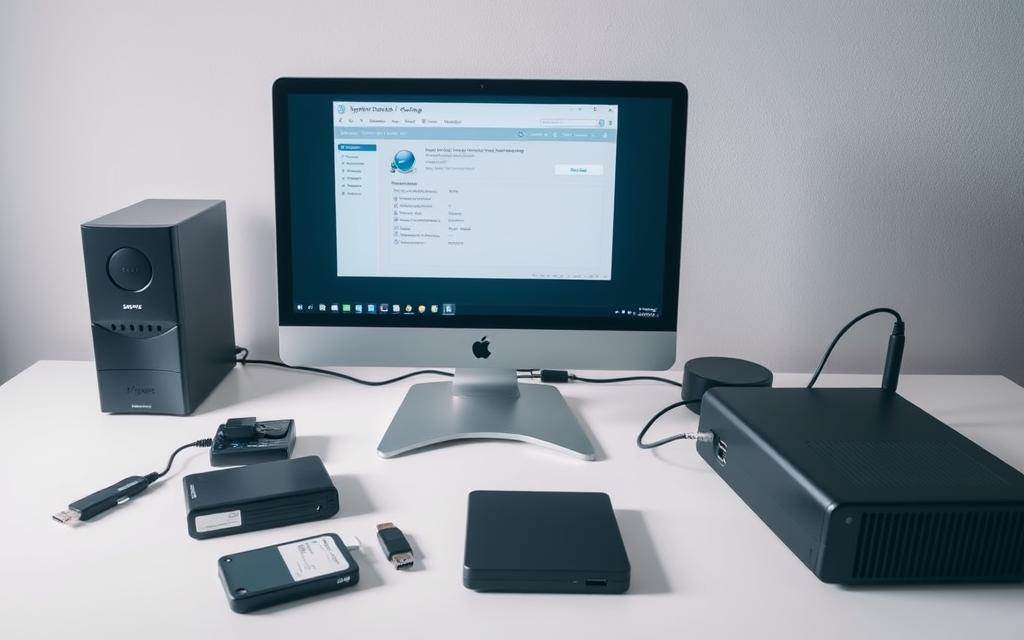
Here are some reliable ways to back up:
- External hard drives have lots of storage space
- Cloud services like Dropbox or Google Drive keep your files safe off-site
- Network-attached storage (NAS) devices make automatic backups easy
While you can back up documents, photos, and personal files, you’ll need to reinstall programmes after installing your new OS. This is important for your OS installation backup plan.
If you’re switching to Linux, check if your programmes work on it first. Some, like Microsoft Office and Adobe products, might not. Look for alternatives or use tools like Wine to make them work.
Gathering Necessary Drivers and Creating Recovery Media
Having the right drivers is vital for your new system’s performance. You need to find drivers for important components that might need special software.
Here are some drivers to look for:
- Network adapters for internet access
- Graphics cards for better display
- Audio chipsets for sound
- Touchpad or special input devices
Making recovery media is your backup plan. It lets you go back to your old system if needed. Most operating systems have tools to make this media.
For Windows, use the Control Panel to make recovery media. macOS users can use Internet Recovery. Linux users can create ISO files for emergency boot media.
This detailed approach to data backup and recovery media ensures you’re ready for anything during your OS change.
Can You Change the Operating System on a Computer: Step-by-Step Guide
Changing your computer’s operating system is a three-step process. This guide will help you create installation media, set up your system’s firmware, and get your storage ready for the new OS.
Creating Bootable USB Installation Media
The first step is to make a bootable USB drive with your chosen OS. Start by downloading the ISO file from the developer’s site. This could be Microsoft for Windows, Apple for macOS, or Ubuntu for Linux.
To make installation media, use the Rufus tool for Windows and Linux. It formats your USB drive and puts the OS files on it. Remember, this will erase all data on the drive, so back up your files first.
With Rufus, pick your USB device, choose the ISO file, and keep the default settings. The tool does the hard work, making installing an OS easy for everyone.
Configuring BIOS/UEFI Settings for New OS Installation
Modern computers use BIOS or UEFI firmware. Setting up BIOS settings lets your system use the installation media. Press F2, F10, DEL, or ESC during startup to get into these settings.
In the firmware settings, find the boot order section. Change these UEFI configuration options to use USB devices or optical drives first. This lets your computer start from the installation media instead of the current OS.
Some systems have a one-time boot menu. You can access it with keys like F12 or F8. This menu lets you choose boot devices without changing firmware settings, perfect for single installations.
Partitioning Your Storage Drive Correctly
Partitioning is the most technical part of OS installation. It divides your storage drive into sections that the OS manages.
When replacing an OS, you’ll delete old partitions to make space. This process varies by OS. For example, when switching from Linux to Windows, you might need to remove partition type 83 or 82.
The installation media usually has partitioning tools. Windows Setup is easy to use, while Linux installers offer automatic and manual options. For advanced users, Fdisk provides detailed control over partitions.
| Partition Type | Numeric Code | Typical Use Case | Recommended Action |
|---|---|---|---|
| Linux Native | 83 | Main Linux system files | Delete when replacing with Windows |
| Linux Swap | 82 | Virtual memory space | Delete when replacing with Windows |
| NTFS | 07 | Windows system files | Keep if preserving data |
| FAT32 | 0B/0C | Shared storage partitions | Keep for cross-platform access |
Be very careful when partitioning. Double-check your choices before making changes, as deleting a partition erases all data. For dual-boot setups, plan your partition sizes carefully to fit both OSes.
By following these steps – creating media, setting up firmware, and preparing storage – you’re ready for a successful OS change. Each step is important, and paying attention to detail helps avoid common problems.
Installing Specific Operating Systems
Now that you’re ready, it’s time to install your chosen operating system. Each one has its own way of being installed. It’s important to know these steps before you start.
Installing Windows 10 or Windows 11
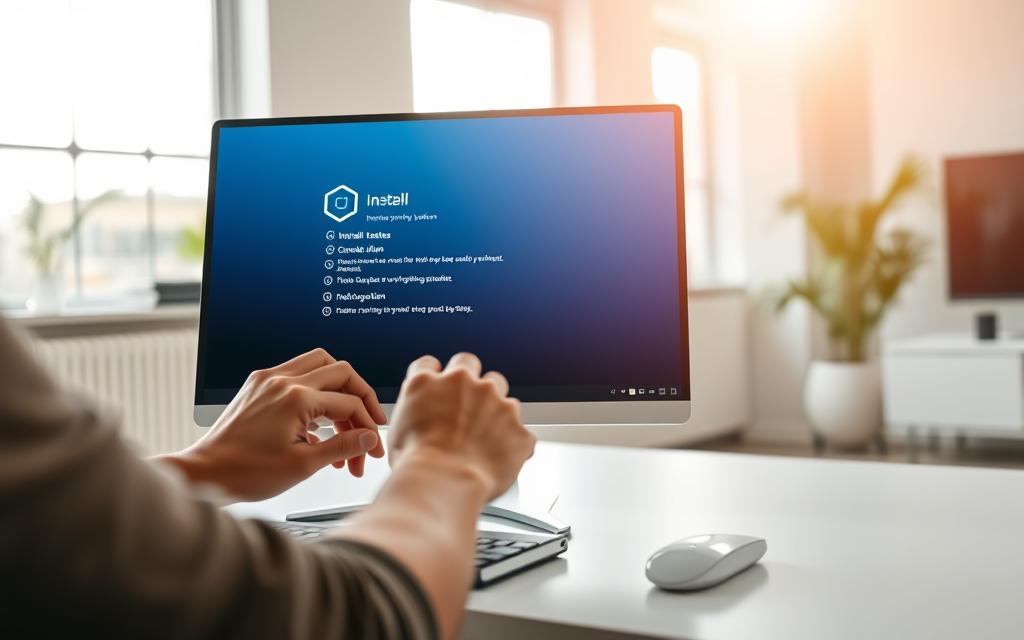
The steps to install Windows 10 or install Windows 11 are similar. But, the system needs are different. Here’s what you’ll do first:
- Select your language, time format, and keyboard preferences
- Enter your product key when prompted (you can skip this and activate later)
- Choose “Custom: Install Windows only” for a clean installation
- Select and format your target partition
Windows will then copy files and install automatically. It might restart a few times. The whole process usually takes 20-40 minutes, depending on your computer.
Instrating macOS on Supported Hardware
macOS installation is different because of strict hardware rules. You can’t install it on just any PC. It’s only for Apple’s own hardware.
If you have a supported Mac, here’s what to do:
- Booting to Recovery Mode (Command-R during startup)
- Selecting “Reinstall macOS” from the utilities window
- Choosing your destination drive
- Following the on-screen instructions
The system will download the latest macOS version from Apple’s servers. Then, it will install it for you.
Installing Popular Linux Distributions
Linux offers many choices for Linux installation. Ubuntu is a great choice for beginners. It has a simple Ubuntu setup process.
When installing Ubuntu or similar distributions:
- Choose between “Normal installation” (includes office software, games) or “Minimal installation”
- Select options to download updates and install third-party software during installation
- Partition your drive manually or use the guided installation
- Create your user account and password
Most Linux installations take 15-30 minutes. You’ll get a fully functional system with essential apps.
Installing an operating system needs patience and careful attention. Always follow the on-screen instructions. And don’t interrupt the process. A successful installation depends on good preparation and understanding each system’s needs.
Dual-Boot Options and Advanced Configurations
Running multiple operating systems on one machine is very flexible. It lets you have different environments for various tasks. You use the same hardware for all.
Setting Up a Dual-Boot System with Multiple Operating Systems
Setting up a dual-boot system needs careful planning. The order in which you install matters a lot. Always put Windows first so the boot manager can see both systems.
Here’s how to set up a multiple OS setup smoothly:
- Use a tool to make separate areas for each OS
- Install Windows first, leaving enough space for the other OS
- Put in your Linux distribution, making sure the boot loader sees both
- Make your boot manager show both OS at start-up
This setup is great for different tasks. You can use Windows for games and macOS or Linux for work. But, be aware of the risks like data loss or system conflicts.
Troubleshooting Common Installation Issues
Even with good planning, problems can happen. Good installation troubleshooting can fix these issues without losing data.
Partition errors are common in dual-boot setups. If you install Windows after Linux, you might face problems. Tools like Fdisk can help by deleting Linux partitions for a clean Windows install.
Boot issues can pop up after updates or new installs. If your boot manager doesn’t show or can’t find an OS, try these fixes:
- Use special boot repair tools for your Linux
- Reinstall the boot loader from a live USB
- Check BIOS/UEFI settings for boot order problems
- Make sure secure boot isn’t blocking other OS
Always back up your data when working with complex setups. The dual-boot system is flexible but also complex. Protecting your data is key.
Conclusion
Changing your computer’s operating system needs careful planning. This summary shows the importance of checking hardware, backing up data, and following installation steps. Whether you pick Windows, macOS, or Linux, these tips help you switch smoothly.
Remember to make bootable media, set up BIOS/UEFI right, and divide storage drives well. These actions reduce risks and avoid common problems. If you’re setting up dual-boot, be extra careful to manage both systems well.
After installing, test the new OS well and keep recovery options ready. Always check official support sites for updates and help. A successful OS change can make your device work better for years.
FAQ
What are the minimum hardware requirements for installing Windows 11?
Windows 11 needs a 64-bit processor, 4 GB RAM, and 64 GB storage. It also requires UEFI firmware, Secure Boot, TPM version 2.0, and a DirectX 12 graphics card. Make sure your hardware meets these specs to avoid problems.
Can I install macOS on a non-Apple computer?
No, macOS is only for Apple devices. Trying to install it on other computers is not supported. It can cause problems and is against Apple’s rules.
How do I create a backup of my data before changing the operating system?
Back up your data with an external hard drive or cloud services like Google Drive or OneDrive. This way, you’ll keep all your files and settings safe. The new OS will erase your current one.
What is a bootable USB drive, and how do I create one?
A bootable USB drive lets your computer start from it. You can make one with Rufus (for Windows or Linux) or BalenaEtcher (for Linux or macOS). Just pick your OS image and USB drive.
How do I access the BIOS/UEFI settings to change the boot order?
Restart your computer and press a key during startup. Common keys are F2, F10, F12, or Delete. In the BIOS/UEFI menu, choose the boot options and set your USB drive first.
What should I do if I encounter partition errors during installation?
Partition errors can happen if your disk is not formatted right or if partitions conflict. Use Disk Management in Windows or GParted in Linux to fix this. Delete old partitions and make new ones with the right file system.
Is it possible to dual-boot Windows and Linux on the same computer?
Yes, you can dual-boot Windows and Linux. Install Windows first, then Linux. This makes it easier for Linux boot managers like GRUB to find Windows. Always back up your data and partition your drive carefully.
Do I need to reinstall my programmes after changing the operating system?
Yes, you’ll need to reinstall programmes after changing your OS. Make sure you have installation files or can download them again. Check if your programmes work with your new OS.
What are the benefits and risks of dual-booting operating systems?
Dual-booting lets you use different OS environments on one machine. But, it can lead to data loss, boot loader issues, and more complexity. Always back up your data and follow instructions carefully.
Where can I find drivers after installing a new operating system?
For Windows, drivers are often in Windows Update or on the manufacturer’s website. For Linux, many drivers come with the distribution. But, you might need to install proprietary drivers, like for NVIDIA graphics, separately.


 By
By