
Building your own computer is an exciting journey. It lets you customise and improve performance. This PC building guide gives you the basics for designing a computer system.
Good system architecture planning helps you avoid problems and get the most value. Start by knowing what you need from your computer. Then, pick your components carefully.
Anyone researching design system may also want to understand digital system processing binary before deciding on the best option.
Choosing the right parts lets you make your computer truly yours. It also saves money. Designing your own computer is rewarding, as you get a machine that fits your needs perfectly.
This guide will show you how to plan and set up your computer. You’ll learn to choose parts for the best performance. It’s useful for different tasks.
How to Design a Computer System: An Overview
Designing a computer system starts with knowing how you’ll use it. This way, you pick the right parts for your needs. It helps avoid spending on things you won’t use.
Fundamental Principles of Efficient Design
Learning the basics of system design principles is key. These rules help you choose and set up your components.
Keeping your system cool is vital. Good cooling stops it from slowing down and makes parts last longer. You need enough airflow and cooling for your system’s workload.
It’s also important to think about power use. Picking parts that use the right amount of power keeps your system stable and saves on electricity. This is more important for systems that are on for a long time.
Planning for upgrades is smart. Choose a motherboard with room for growth and a power supply that can handle more. This makes upgrading easier.
Matching these needs with your budget is key. A well-balanced system where no part holds back others is the goal. This is what good computer architecture basics are all about.
Identifying Primary Use Cases
Doing a deep use case analysis helps pick the right parts. Different tasks need different strengths in components.
Gaming systems focus on graphics. They spend more on graphics cards and monitors with high refresh rates. The CPU needs to be good at single tasks.
For content creation, like video editing, you need a system that can handle many tasks at once. This means a strong multi-core processor, lots of RAM, and fast storage. You might use SSDs for active projects and HDDs for storing files.
Business computers need to be reliable and have lots of storage. They often use integrated graphics unless needed for specific tasks. Security and backup are also key.
| Use Case | Primary Focus | Key Components | Budget Allocation |
|---|---|---|---|
| Gaming | Graphical performance | GPU, high-refresh monitor | 40-50% GPU, 20% CPU |
| Content Creation | Processing power & storage | Multi-core CPU, fast SSD | 30% CPU, 25% RAM, 20% storage |
| Business/Office | Reliability & capacity | Quality SSD, backup solutions | 30% storage, 25% CPU, 20% reliability features |
| General Use | Balance & value | Integrated graphics, adequate RAM | Balanced across all components |
When planning your build, think about now and the future. This way, you avoid needing to upgrade too soon. It helps your system stay relevant for longer.
Knowing how your use affects your hardware choices is key. It helps you make smart decisions during the design process. This knowledge is what connects your needs to the right parts.
Establishing Your System Requirements
Your computing needs and how much you can spend will shape your system design. Before buying parts, do a detailed system requirements analysis. This helps figure out what you really need versus what’s nice to have.
Creating a Realistic Budget Framework
Good computer budget planning starts with knowing your spending limits and what you need. The market has many options at different prices, each with its own set of features.
When planning your build, consider these three main budget levels:
| Build Tier | Price Range | Primary Use Cases | Expected Performance Level |
|---|---|---|---|
| Entry-Level | $300-600 | Basic computing, web browsing, office applications | Handles everyday tasks smoothly, limited multitasking |
| Mid-Range | $700-1,200 | Gaming, content creation, moderate workstation tasks | Good gaming at 1080p, efficient multimedia handling |
| High-End | $1,500-3,000+ | Professional workstations, 4K gaming, intensive applications | Exceptional performance across all demanding tasks |
Spread your budget wisely across components. For gaming, invest in a good graphics card. For workstations, focus on CPU and memory. Always save 10-15% for extras and unexpected costs.
“A well-planned budget prevents overspending on unnecessary features while ensuring critical components receive adequate funding.”
Performance Benchmarking and Expectations
Performance benchmarking gives you real data for choosing components. Modern tools show how hardware performs in different tasks, helping you know what to expect at each budget level.
Entry-level systems usually offer:
- Basic 1080p productivity performance
- 60Hz display compatibility for everyday use
- Adequate storage speeds for document management
Mid-range builds generally deliver:
- 1080p gaming at 60+ FPS in most titles
- Quick application loading and file transfers
- Smooth multitasking across several applications
High-end configurations offer:
- 4K gaming capabilities at high frame rates
- Professional-grade rendering and computation speeds
- Future-proofing for several years of use
Set clear hardware performance standards based on your main tasks. Look into specific software needs and match components to them. Balanced systems often perform better than those with one standout part.
Your cost estimation should also think about future upgrades. Planning for expandability keeps your system up-to-date as technology changes and your needs grow.
Selecting the Central Processing Unit (CPU)
The CPU is the brain of your computer. Choosing the right one is key. It affects how well your computer works, from simple tasks to complex ones.
Analysing CPU Specifications for Your Needs
Choosing a CPU means looking at several important specs. The number of cores affects multitasking and speed. Most CPUs have between 4 to 64 cores, depending on what you need.
Clock speed shows how fast the CPU works. Faster speeds mean quicker performance. But, the design of the CPU also matters. Modern CPUs can boost their speed when needed.
Cache memory is fast memory inside the CPU. It helps access data quickly. Today’s CPUs have different cache levels with varying sizes and speeds.
Intel and AMD CPUs have different designs. This affects their power use, heat, and performance. Both offer good options at different prices.
| Specification | Entry-Level | Mid-Range | High-End |
|---|---|---|---|
| Core Count | 4-6 cores | 8-12 cores | 16+ cores |
| Thread Count | 4-12 threads | 16-24 threads | 32+ threads |
| Base Clock Speed | 3.0-3.5 GHz | 3.5-4.0 GHz | 3.8-4.5 GHz |
| Boost Clock Speed | 4.0-4.5 GHz | 4.5-5.0 GHz | 5.0+ GHz |
| Cache Size | 8-16 MB | 20-32 MB | 40+ MB |
Thermal Design Power and Cooling Solutions
Thermal Design Power (TDP) is the heat a CPU produces. It affects your cooling needs. Lower TDP means better power use, while higher TDP needs stronger cooling.
Managing heat starts with knowing your CPU’s TDP and how hard you’ll use it. Gaming and content creation have different cooling needs. Each needs a different approach.
Air cooling is common for managing heat. It uses fans and heatsinks. It’s reliable and easy to maintain. Basic air coolers work for lower-TDP CPUs, while premium ones handle high-end CPUs well.
Liquid cooling offers better heat management. It’s available in all-in-one (AIO) and custom setups. AIO coolers are easier to install and cool better than custom loops. They’re great for high-TDP CPUs and overclocking.
When choosing cooling, think about ease of installation, noise, and maintenance. Air coolers are simpler and need little upkeep. Liquid coolers require occasional coolant change and more complex setup.
Decide between air and liquid cooling based on your CPU’s heat and your needs. Good cooling keeps your CPU stable and extends its life.
Choosing the Motherboard and Memory Configuration
Your motherboard is like the brain of your computer. It connects all parts and decides what your system can do. Picking the right motherboard and RAM is key to a fast and balanced system.

Motherboard Form Factors: ATX, Micro-ATX, and Mini-ITX
The size of your motherboard affects what you can do with your build. Knowing about different sizes helps you pick the best one for your system.
ATX boards have lots of room for extra cards and RAM. They’re great for gaming and workstations that need more power.
Micro-ATX is a good middle ground. It’s a bit smaller but can handle most needs. It’s perfect for mid-tower cases and is a smart choice for many.
Mini-ITX is the smallest but works well for small builds. It’s good for tiny systems or when you need something portable.
RAM Selection: Capacity, Speed, and Latency
How much RAM you choose affects how fast your system is. DDR4 and DDR5 are the latest types, each with its own benefits.
How much RAM you need depends on what you do. For everyday tasks, 8-16GB is enough. Gamers might want 16-32GB. For heavy tasks, 32GB or more is best.
RAM speed, in MHz, is how fast it can read and write. Faster speeds mean better performance, which is good for games and heavy tasks.
Latency is how long it takes for RAM to get data. Lower numbers mean faster access. But, the difference is often small compared to speed.
Make sure your motherboard and RAM work well together. Check the motherboard’s QVL list to avoid problems.
Think about upgrading when choosing your motherboard and RAM. A motherboard with extra slots and support for more RAM lets your system grow with you.
Storage Solutions: SSDs and HDDs
Modern computers need smart storage planning to meet performance and budget needs. Your storage setup affects how fast your system is, how long it takes to start up, and your overall experience. Choosing between solid-state drives (SSDs) and traditional hard disk drives (HDDs) is a key decision in building a computer.
NVMe Solid State Drives for Optimal Performance
NVMe SSDs are the latest in storage tech, giving you super-fast speeds through the PCIe interface. They outdo SATA drives, cutting down on wait times for apps and OS. The NVMe performance shines in big file moves and tough tasks.
M.2 NVMe drives fit right on your motherboard, saving space and cutting down on cables. They’re perfect for small builds but keep top-notch performance. When picking an NVMe SSD, look at sequential read/write speeds and how long it lasts.
Professionals in video editing, data analysis, or gaming get the most from NVMe. It means faster access to data, smoother work, and less waiting. Though they cost more, these drives are worth it for important tasks.
Hard Disk Drives for Cost-Effective Mass Storage
Hard disk drives (HDDs) are great for mass storage solutions because they’re cheaper per gigabyte. They’re perfect for big media collections, backups, and files you don’t use often. Modern HDDs can hold up to 8TB or more for consumers.
HDDs are slower than SSDs because they use moving parts. But for storing photos, videos, and documents, this slowness isn’t a big deal. Many people use HDDs for these types of files where quick access isn’t needed.
For desktops, 3.5-inch HDDs are the best value. For laptops and small desktops, 2.5-inch models are better. Make sure HDDs are mounted right to avoid vibration. Also, schedule defragmentation to keep them running well.
| Storage Type | Performance Characteristics | Cost Considerations | Ideal Usage Scenarios |
|---|---|---|---|
| NVMe SSD | Extremely fast read/write speeds | Premium pricing | OS installation, applications |
| SATA SSD | Fast performance | Moderate pricing | Games, frequent files |
| HDD (7200 RPM) | Standard speed | Budget friendly | Mass storage, archives |
Smart storage optimisation often means mixing different techs. Many put their OS and apps on an NVMe SSD. Then, they use a big HDD for documents and media. This mix gives you speed where it counts and keeps costs down for lots of storage.
When planning your storage, think about growing your needs and what your motherboard can handle. Most modern motherboards have many M.2 slots and SATA ports. This lets you set up your storage in many ways. Always check if your motherboard supports the interfaces you need before choosing your parts.
Graphics and Peripheral Components
Choosing the right graphics and peripherals greatly affects your computer use. These parts connect your system’s power to how you interact with digital stuff.
Smart choices lead to better performance in many tasks. Whether for work or fun, pick what fits your needs and likes.

Discrete Graphics Cards vs Integrated Solutions
Computers come with two main graphics choices: built-in and separate cards. Knowing the difference helps pick the best for you.
Integrated graphics are good for everyday tasks. They work well for web, office work, and watching videos, using less power.
Discrete cards offer better performance for tough tasks. They have special memory and power for games, video editing, and 3D work.
Think about these when deciding between built-in and separate graphics:
- What you mainly use your computer for
- How much power and heat it uses
- How much you can spend and if you can upgrade later
- If it fits with your motherboard and power supply
Monitor, Keyboard, and Mouse Selection Criteria
Peripherals turn your computer into a full system. Your monitor, keyboard, and mouse should match your graphics and be easy to use.
Choosing a monitor depends on your graphics’ output. Look at resolution, refresh rate, and panel type to match your system.
Keyboards and mice should be comfy and functional. Different types and options suit different needs.
| Component | Key Considerations | Recommended For | Budget Range |
|---|---|---|---|
| Monitor | Resolution, refresh rate, response time | Gaming: 144Hz+; Design: colour accuracy | $150-$800 |
| Keyboard | Switch type, backlighting, connectivity | Typing: mechanical; Space: membrane | $50-$200 |
| Mouse | DPI, grip style, programmable buttons | Gaming: high DPI; Office: ergonomic | $30-$150 |
| Graphics Card | VRAM, clock speed, cooling solution | Gaming: discrete; Basic: integrated | Integrated-$1000+ |
Display tech keeps getting better with OLED and quantum dot. These improve colours and contrast for creating content.
Input devices have also improved with wireless and customisation. Many now have software for customising and tuning.
Make sure your graphics and monitor work well together. Check ports and resolutions for the best performance.
Your peripherals should work together well. Try out different options to find your perfect setup.
Assembly Process and System Testing
Putting together your chosen parts is the most exciting part of building a computer. It turns individual parts into a working system. This is done through careful assembly and detailed testing.
Static Discharge Prevention Measures
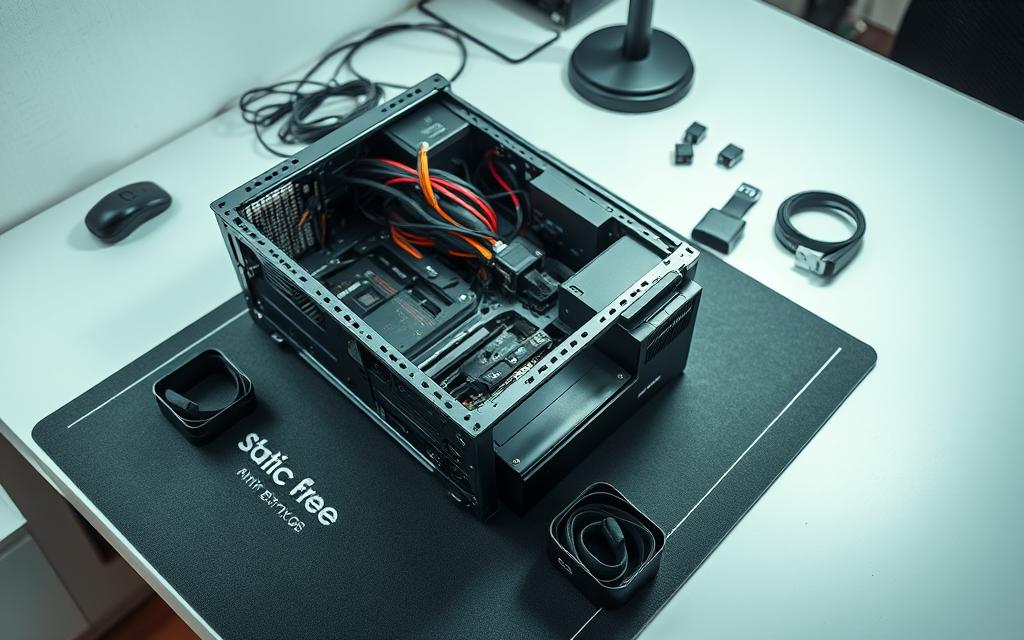
Static electricity can harm your computer’s sensitive parts. Even a small shock can damage your hardware. Using the right static protection keeps your investment safe.
Start by working on a clean, hard surface. Avoid carpets or fabrics that can cause static. An anti-static wrist strap is the best way to ground yourself. Connect it to a metal object or the computer case before touching any parts.
More steps to prevent damage include:
- Handling components by their edges, not touching circuitry
- Keeping parts in anti-static bags until you’re ready to install them
- Working in a low-humidity area if you can
- Staying away from synthetic clothes that can cause static
Post-Assembly Diagnostics and Troubleshooting
After you’ve put everything together, do a thorough system diagnostics. This checks if everything works right before you install software.
First, check all connections and how parts fit. Turn on the system and go to the BIOS/UEFI. Make sure all hardware shows up correctly. Also, check that memory and storage devices work as they should.
For more help, check out this detailed PC assembly guide.
Here are some common problems and how to fix them:
| Symptom | Potential Cause | Resolution Steps |
|---|---|---|
| No power or boot | Incorrect front panel connections | Check the motherboard manual for the right pin setup |
| RAM not detected | Improper seating or incompatible modules | Try reseating modules firmly, or use different slots for each stick |
| Overheating issues | Inadequate cooling or thermal paste application | Check fan connections, and reapply thermal paste if needed |
| Storage not recognised | Loose data or power cables | Double-check SATA and power cables at both ends |
Use performance software to check your build quality assurance. Tools like CPU-Z and CrystalDiskMark show if parts meet specs. Stress tests for thirty minutes check thermal stability.
Keep a record of any problems and how you fixed them. This is useful for future maintenance or upgrades. Testing now helps avoid issues later when you use the system every day.
Conclusion
Finishing your custom computer build is a big win in computer system design. It shows the value of good planning and careful work.
But, your work doesn’t stop there. Keeping your system in top shape is key. Use tools like MSI Afterburner or AMD Adrenalin to tweak its performance.
Thinking ahead about upgrades is also important. Look at what Intel, NVIDIA, or Samsung are coming up with. This helps you plan for the future.
Testing your system with benchmarks like 3DMark or Cinebench is vital. It makes sure your system works as expected. This step is essential for keeping it reliable over time.
Keep your system clean and update its software regularly. This keeps it running smoothly and ready for new upgrades.
Your new computer is not just useful; it’s also a personal achievement. Keep learning about new tech to stay ahead.
FAQ
What are the fundamental principles of efficient computer system design?
Efficient computer design starts with knowing what you need. It’s about balancing cost and performance. You should also think about how your system will grow in the future.
Choose parts based on how you’ll use your computer. Make sure everything works well together. Don’t forget about keeping your system cool and using less power.
How do I identify my primary use case before selecting components?
Think about what you do most on your computer. For gaming, you’ll need a strong GPU and a fast monitor. If you create content, a fast CPU and lots of RAM are key.
For work, focus on storage and reliability. Knowing your daily tasks helps you build a system that meets your needs.
How should I create a realistic budget for building a custom computer?
First, decide what you need your computer to do. Then, look at the cost of different parts. Start with the basics and add more as you can.
Remember to save for unexpected costs. Think about upgrading later to get more value from your system.
What factors should I consider when selecting a CPU?
Look at the number of cores, speed, cache size, and the CPU’s architecture. Intel and AMD both offer good options. Also, consider the TDP for cooling needs.
For multitasking and content creation, more cores are better. For gaming, a faster speed is more important.
How do I choose between air cooling and liquid cooling for my CPU?
Air cooling is cheaper and easier to set up. It’s good for most users and gamers. Liquid cooling is better for overclocking but is more complex and expensive.
Choose based on your CPU’s heat output and your performance goals.
What are the differences between motherboard form factors like ATX, Micro-ATX, and Mini-ITX?
ATX has the most room for upgrades and connections. Micro-ATX is smaller but versatile. Mini-ITX is the smallest, great for saving space but with fewer options.
Your choice affects how easy it is to upgrade and the size of your system.
How much RAM do I need, and what should I look for in terms of speed and latency?
For everyday use, 8–16GB is enough. Gamers and multitaskers might need 16–32GB. Content creators might need even more.
Look for fast speeds and low latency. Faster and lower means better performance. Also, consider the type, like DDR4 or DDR5, for future use.
What are the advantages of NVMe SSDs over traditional HDDs?
NVMe SSDs are much faster than HDDs. They make your system start up quicker and apps load faster. HDDs are cheaper for storing lots of files.
Use an SSD for your operating system and apps. Use an HDD for storing files you don’t use often.
Should I choose a discrete graphics card or rely on integrated graphics?
Integrated graphics are good for basic tasks and watching videos. Discrete graphics are needed for gaming and video editing. Choose based on your needs and budget.
What should I consider when selecting a monitor, keyboard, and mouse?
For monitors, look at resolution, refresh rate, panel type, and connections. For keyboards and mice, focus on ergonomics and how they fit your use.
How can I prevent static discharge during assembly?
Wear an anti-static wrist strap and work on a non-static surface. Avoid carpeted areas. Handle components by the edges and keep them in anti-static bags.
What steps are involved in post-assembly system testing?
Turn on your system and check the BIOS to see if everything is recognised. Look at temperatures and voltages. Run diagnostic software to test performance.
If there are problems, check connections, compatibility, and hardware seating. This ensures everything works right.


 By
By