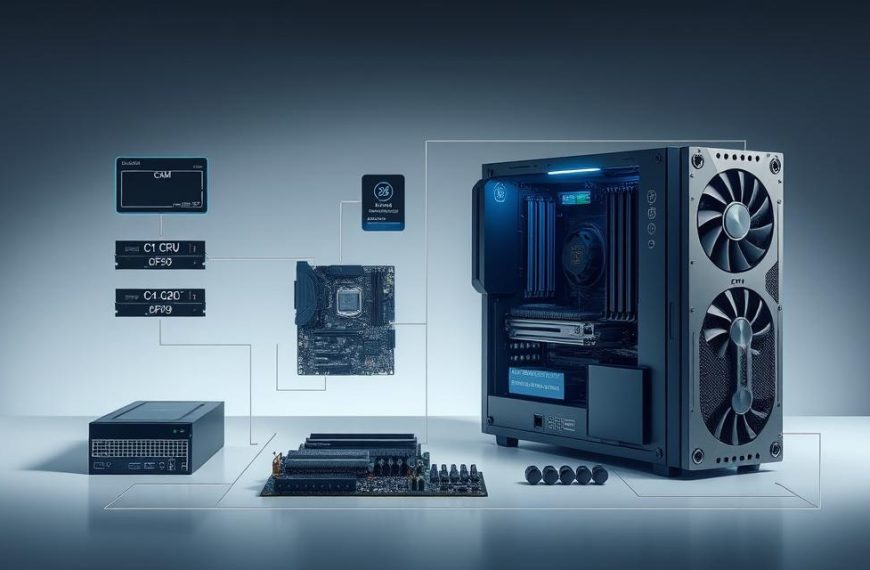

Your computer is a big investment that needs care. With regular maintenance, it can last three to eight years or more.
Ignoring your device’s needs can shorten its life. A consistent maintenance routine is key to keeping your machine in top shape.
This guide will cover software updates and hardware cleaning. We’ll share computer maintenance tips for better PC longevity.
Good system care keeps your investment safe and running well. It prevents sudden failures and keeps your device’s value high.
By following these tips, your computer will stay in great condition for years. Let’s look at the best ways to keep your computer in top shape.
Understanding the Basics of Computer Maintenance
Starting with the basics is key to keeping your computer in top shape. Learning these basics is the first step to maintaining your device. It ensures your computer works at its best.
Why Regular Maintenance Matters
Regular upkeep of your computer has many benefits. It stops dust from building up, which can cause overheating and damage. This helps your computer last longer.
It also saves you money. A well-kept computer needs fewer repairs and parts replacements. This means lower costs over time. Plus, it uses less energy, which can cut down on your electricity bills.
Regular care also keeps your computer running smoothly. It means fewer crashes and slower slowdowns. This regular maintenance importance is huge for anyone who relies on their computer for work or big projects.
Essential Tools and Software for Effective Maintenance
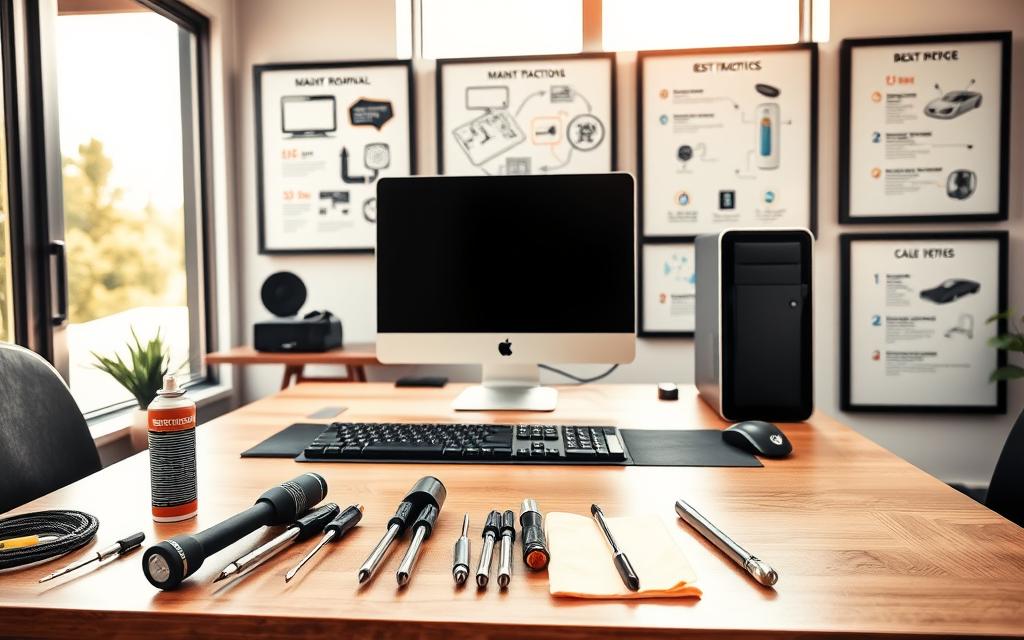
Creating a good maintenance toolkit is a smart first step. You’ll need both hardware and software tools to keep your computer in top shape.
For cleaning, you’ll need:
- Compressed air cans for dust removal
- Microfibre cloths for screen cleaning
- Isopropyl alcohol for deep cleaning
- Anti-static brushes for delicate parts
Software tools are just as important. Good antivirus programs keep malware away. System optimisation tools clean up temporary files and registry entries. Diagnostic tools find problems early.
Each operating system needs its own set of tools. Windows users might prefer certain suites, while macOS users might need different ones. Choose tools that fit your system and your comfort level with tech.
If you need help, there are many online resources. The Norton computer maintenance guide is a great place to start.
The best maintenance tools are the ones you use regularly. Begin with the basics and add more as you get more comfortable with basic computer maintenance.
How to Maintain Computer System Software
Keeping your computer software up to date is key. It makes sure your machine works well and stays safe from threats.
Keeping Your Operating System Updated
Regular updates make your system better and safer. They fix problems and boost how well it works.
Step-by-Step Guide for Windows and macOS Updates
Windows users, go to Settings > Update & Security > Windows Update. Click “Check for updates” to install new ones.
For macOS, open System Preferences > Software Update. Download and install any updates to keep your system running smoothly.

Regular updates give enhanced security protection. They also fix bugs and make your system more stable.
Updates often bring new features and better compatibility. This means your software works well with the latest apps.
Managing Installed Programs and Drivers
Managing your programs and drivers well is important. It helps your system run better and keeps it tidy.
Removing Unnecessary Applications
Unused apps take up space and slow your computer. They can also run in the background and slow things down.
Use the uninstaller tool to remove apps you don’t use. This keeps your system fast and efficient.
Updating Device Drivers and Firmware
Having the latest drivers is essential. They make sure your hardware works right. Old drivers can cause problems.
Check the manufacturer’s website for driver updates or use automatic tools. Keeping your drivers up to date stops hardware issues and makes your system reliable.
Hardware Maintenance Practices
Software maintenance keeps your system running well. But, taking care of your computer’s physical parts is key. Regular checks on both outside and inside parts can make your device last longer and work better.
Cleaning Your Computer Components
Hardware cleaning is about both the outside and inside. Dust, dirt, and spills can harm your system’s performance and life.
External Cleaning Techniques for Keyboards, Monitors, and Cases
Weekly cleaning stops dirt from building up on the outside. For keyboards, a damp cloth and compressed air between keys are good. Monitors need a dry microfiber cloth to avoid damage.
Computer cases should be dusted with a soft cloth regularly. Keep food and drinks away to avoid spills and damage.
Every quarter, clean the inside of your computer. Always unplug it first. Use compressed air to remove dust from fans and vents.
Every month, clean computer ports with compressed air. This stops connection problems and keeps air flowing.
Monitoring Hardware Health and Performance
Regular checks help spot problems early. Good component maintenance means cleaning and checking how things work.
Using Diagnostic Tools such as Windows Memory Diagnostic
Windows has diagnostic tools to check your hardware. The Windows Memory Diagnostic tool checks RAM. Other tools watch hard drive and processor health.
Third-party apps can do more. They track temperature, fan speed, and voltage to keep things running smoothly.
Identifying Common Hardware Issues
Spotting early signs can stop big problems. Common issues include:
- Overheating from blocked fans or vents
- Slow performance from failing hard drives
- Random crashes from memory problems
- Connection issues from dirty or damaged ports
Using diagnostic tools regularly helps find these problems early. Fixing them quickly keeps your system reliable and efficient.
Security and Data Management Strategies
Keeping your digital stuff safe needs a solid plan. This plan should include good security steps and smart data handling. A strong strategy keeps your system safe and your important info secure and easy to get to.
Implementing Robust Security Measures
Good computer security starts with many layers of protection. These layers work together to fight off threats.
Installing and Maintaining Antivirus Software like McAfee or Avast
Choosing top-notch antivirus software is key. Programs like McAfee or Avast protect against malware and other online dangers.
Keep your antivirus up to date by setting it to auto-update. Also, scan your computer weekly. This makes sure you’re always protected against the latest threats.
Add more security by turning on your firewall and checking its settings every few months. This creates extra barriers against hackers.

Being careful online is also important. Always check if a website is secure before sharing personal info or downloading files.
Look for HTTPS and security certificates on websites. Avoid clicking on suspicious links or downloading files from unknown sources. These habits help keep you safe.
Change your passwords every three months and use strong, unique ones. A password manager can help keep your passwords safe without being a hassle.
Backing Up Your Data Regularly
Having a good backup plan keeps your data safe, no matter what happens to your computer. Backups protect against crashes, accidental deletes, and cyber attacks.
Comparing Backup Methods: Cloud Services vs. External Hard Drives
Knowing about different backup options helps you pick the best one for you. Each method has its own benefits, depending on what you need.
| Backup Method | Advantages | Considerations | Best For |
|---|---|---|---|
| Cloud Services | Automatic syncing, remote access, off-site protection | Subscription costs, internet dependency | Frequently updated files, multi-device users |
| External Hard Drives | One-time cost, full control, fast restoration | Physical damage risk, manual operation | Large media files, sensitive data protection |
| Hybrid Approach | Combined benefits, redundant protection | Increased management required | Critical business data, complete coverage |
Setting Up Automated Backup Schedules
Automation makes sure your data is always backed up, without you having to remember. Both Windows and macOS have tools for setting up regular backups.
For Windows, File History backs up important folders continuously. On macOS, Time Machine does hourly, daily, and weekly backups automatically.
Choose how often to back up based on how important and often you update your data. Business files might need daily backups, while personal stuff might be okay with weekly.
Check your backups work by restoring data now and then. A backup is only good if you can get your data back from it.
Conclusion
Proper computer maintenance is a wise choice for keeping your system running smoothly. It helps your device last longer.
By updating software, cleaning hardware, and backing up data, you protect your computer. This approach prevents it from failing early.
Laptops usually last three to five years. But, with proper care, they can last much longer. Simple habits can save you money by delaying when you need a new one.
Following the maintenance tips in this article will make your computer last longer than expected. Create a routine that fits your needs and environment.
By regularly maintaining your computer, you extend its life and save money in the long run. Start these practices today to get the most out of your computer.


 By
By