
Your computer’s core software is its operating system. It controls hardware, runs applications, and manages your user experience.
Knowing your specific OS version is key for a few reasons. It lets you install software that works right. It also makes sure you get the right security updates.
When you need tech support, you often have to determine PC OS details first. This info helps IT teams fix problems quickly.
Our guide will teach you how to quickly check computer operating system details. You’ll learn easy ways to find my OS info on various devices.
Why Knowing Your Operating System Matters
Knowing your computer’s operating system is more than just a technical detail. It’s key to getting the best out of your computer. It affects how well your software and hardware work together and how safe you are from threats.
Software compatibility is a big reason to know your OS. Apps are made for specific OS versions. If you install the wrong software, it might not work or could even crash.
Hardware drivers are another area where knowing your OS is important. Devices like printers and graphics cards need drivers that match your OS. Using the wrong drivers can make your devices not work right or slow them down.
Security updates are also specific to each OS version. This means knowing your OS is key to staying safe online. Without the right OS info, you might miss important updates that protect you from threats.
When you need tech support, knowing your OS is very helpful. Tech experts will ask for this info first. They use it to:
- Give you the right troubleshooting steps
- Recommend software that works with your OS
- Find and fix known issues with your version
- Offer the best updates or patches
Before buying new software or games, checking if they work with your OS is smart. This saves you time and money. Most programs list the minimum OS requirements for the best performance.
Understanding your operating system helps you make better choices for your computer. It’s the first step in fixing problems and keeping your system running smoothly with the software and hardware you like.
What Operating System Does My Computer Use: Windows Methods
Windows users can easily find out their operating system details. Whether you’re using Windows 10 or Windows 11, Microsoft has tools to show you system information. These tools help you know your Windows edition, version, and architecture type.
Using Settings to Identify Your Windows Version
The Settings menu is the easiest way to check your Windows specs. Here’s how to do it:
- Click the Start button and select Settings (the gear icon)
- Navigate to System > About
- Locate the Windows specifications section
This screen shows your edition (Home, Pro, Education), version number, and when you installed it. You’ll also see if your system is 32-bit or 64-bit. This Windows 10 version check method also works for Windows 11 OS info.
Accessing System Information for Detailed Insights
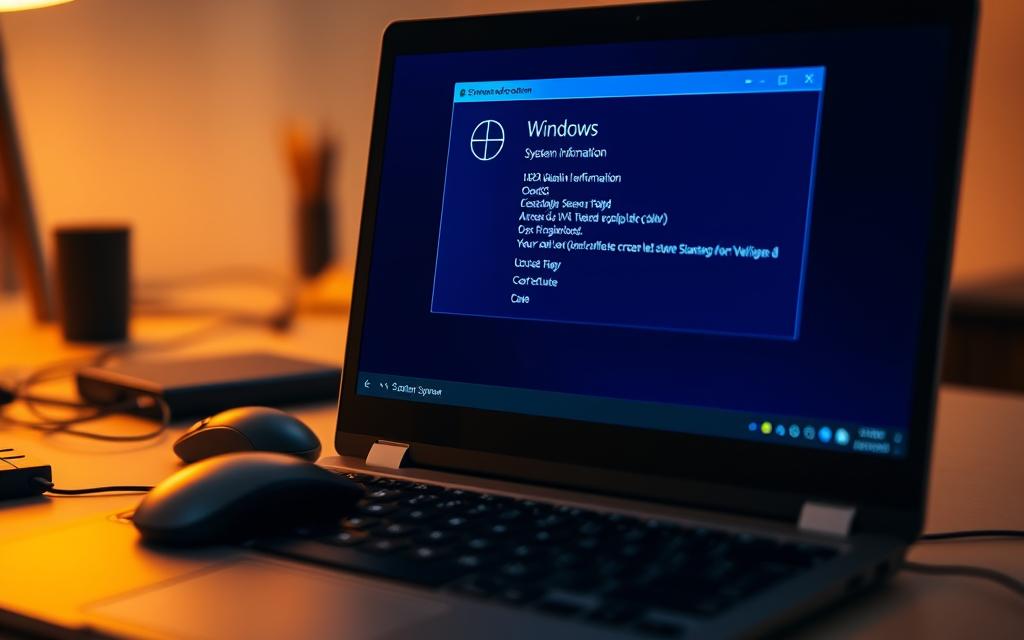
For those who want more detailed system data, the System Information tool is great. You can access it by:
- Pressing Windows Key + R to open the Run dialog
- Typing “msinfo32” and pressing Enter
- Reviewing the system summary that appears
This tool shows your system’s build number, BIOS version, and hardware details. It’s good for troubleshooting or checking system requirements for specific software.
Tip: Distinguishing Between Windows Editions
Windows editions vary in features and capabilities. Home edition is good for most users, while Pro has business features like BitLocker encryption. Enterprise edition has advanced security and management tools for businesses.
Your system type 32-bit or 64-bit affects software compatibility and RAM support. 64-bit systems can handle more memory and run both 32-bit and 64-bit apps. 32-bit systems have limits on RAM addressability.
How to Check Your macOS Version
Mac users have several easy ways to find their operating system. You can use graphical interfaces or command-line tools. Apple makes it simple to get your system information. This section will show you the best ways to check your macOS version.
Finding OS Details via About This Mac
The easiest way to see your Mac’s operating system is through the Apple menu. Click the Apple logo in the top-left corner of your screen. Then, select ‘About This Mac’ from the dropdown menu.
A window will pop up showing your macOS name and version number. You might see names like macOS Sonoma, Ventura, or Monterey. The version number is listed below the name.
This method gives you the basic info most users need. The window also shows your Mac’s model, processor, memory, and serial number. It’s perfect for quick checks.
Using Terminal for Advanced Verification
For those who prefer command-line tools, macOS has Terminal. You can find Terminal in your Utilities folder within Applications.
Open Terminal and type sw_vers then press Enter. This command gives you three important pieces of information:
- ProductName: The marketing name of your macOS
- ProductVersion: The version number of your operating system
- BuildVersion: The specific build number of your installation
The build number is very useful for developers and support technicians. It helps identify the exact version of your operating system. This is helpful when solving specific problems or checking compatibility.
For more detailed system information, use the system_profiler command. It provides detailed technical details about your hardware and software.
| Method | Best For | Information Provided | Technical Level Required |
|---|---|---|---|
| About This Mac | General Users | OS name, version, basic hardware specs | Beginner |
| Terminal (sw_vers) | Developers | Version, build number, product name | Intermediate |
| Terminal (system_profiler) | Technicians | Comprehensive system details | Advanced |
Both methods are good for checking your macOS version. The graphical method is easy for most users. Terminal offers deeper technical insights. Choose the method that fits your comfort level and needs.
Identifying Your Linux Distribution
Linux systems are very flexible, but finding your specific distribution can be tricky. You can use terminal commands or graphical interfaces to get the information you need.
Command-Line Techniques for Linux OS Check
The terminal is the best way to check your Linux version. Many commands work on most distributions, giving you detailed system information.
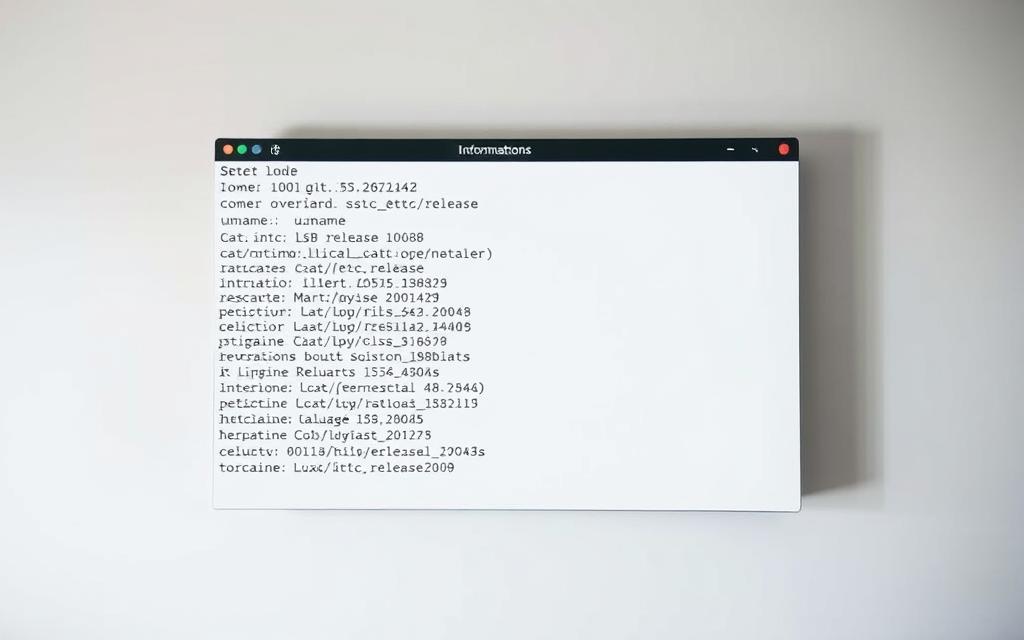
lsb_release -a is a popular command for checking your OS. It shows the distributor ID, description, release number, and codename. If your system doesn’t support LSB, try cat /etc/os-release for similar details.
hostnamectl is another useful command. It gives system information and hostname details. These commands are quick and don’t need graphical interfaces.
Graphical User Interface Approaches
For those who like visual interfaces, most Linux desktops have system info panels. The location varies but follows similar patterns.
In GNOME, go to Settings > About. KDE Plasma users can find system details under System Settings > About This System. These sections show your distribution name, version, and other important specs.
Some distributions have special tools for system information. These tools provide detailed data about your installation. They’re a good option if you’re not comfortable with terminal commands.
Note: Common Linux Distributions and Their Identifiers
Different Linux distributions have unique identifying information. Knowing these patterns helps you quickly find out your system’s identity.
Ubuntu systems usually say “Ubuntu” in the description field with version numbers like 20.04 or 22.04. Fedora installations show “Fedora” followed by the release number. Debian systems display “Debian GNU/Linux” with their version codename like “Bullseye” or version number.
For more help on understanding these identifiers, check our detailed Linux version checking resource. This guide helps you understand what different output formats mean for your specific distribution.
Checking Other Operating Systems
Windows, macOS, and Linux are the big names in personal computing. But, other operating systems exist for specific needs and hardware. Knowing how to spot these systems helps you get the right support and software.
Determining ChromeOS on Chromebook Devices
ChromeOS is what powers Chromebook devices. It’s all about cloud computing. To find your ChromeOS version, just check the system settings.
Here’s how to see your version:
- Click the time display in the bottom-right corner of your screen
- Select the Settings gear icon from the menu that appears
- Navigate to ‘About ChromeOS’ at the bottom of the left-hand menu
- View your current version and update status on this screen
This easy method gives you your system info fast, no tech skills needed.
Verifying BSD and Other Unix-like Systems
BSD variants and Unix-like systems are for advanced users and servers. They need command-line checks.
To check BSD version and kernel details, open your terminal. Then type:
uname -a
This command shows you system info like:
| Information Type | Description | Example Output |
|---|---|---|
| Kernel Name | Operating system type | FreeBSD, OpenBSD |
| Network Node Hostname | System identification on network | server.example.com |
| Kernel Release | Version number of OS | 13.2-RELEASE |
| Machine Architecture | Hardware platform information | amd64, arm64 |
This method gives tech-savvy users the system specs they need for upkeep and fixing issues.
Conclusion
Knowing your computer’s operating system is key for many reasons. It affects software use, security, and fixing problems. The steps we’ve covered help you check your OS accurately, avoiding online tools that often get it wrong.
This guide covers how to check your OS on Windows, macOS, Linux, ChromeOS, and BSD. You can use graphical tools or command lines to get the exact details of your system. This way, you know exactly what version and build you’re running.
If you need to check your system specs again, this guide is your go-to. The methods for each platform are the best ways to find out about your OS. They are much better than online tools that often give wrong or incomplete info.


 By
By