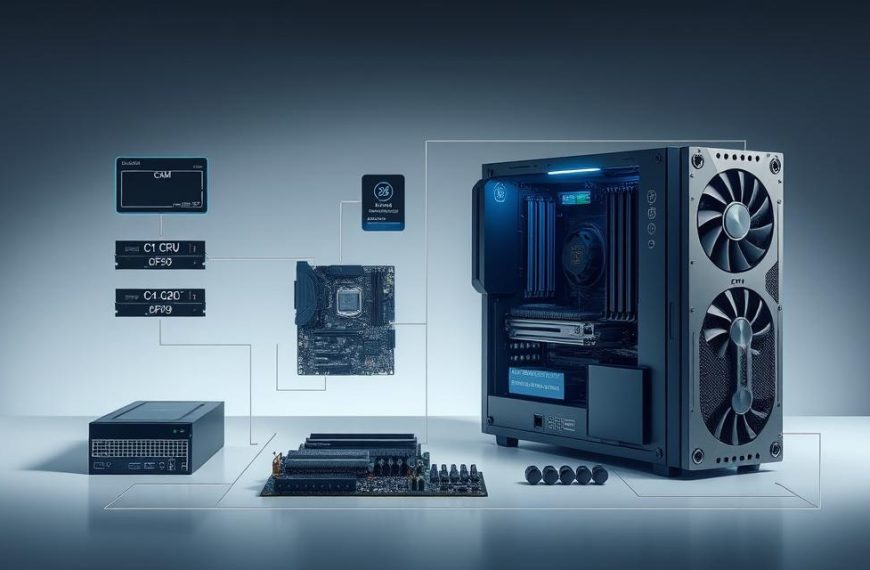

Dealing with software glitches or performance issues on your Dell PC can be really frustrating. These problems can mess up your work and cause stress. Luckily, Dell computers have strong recovery tools to help.
A good system recovery can fix many computer problems. It brings your device back to a stable state, keeping your files safe. This is great for Dell users who want their computer to work well.
This guide will show you how to restore your computer. We’ll cover basic and advanced methods for Dell systems. Just follow our steps to get your computer working again.
Whether it’s a new software issue or a long-standing problem, we’ve got you covered. Our expert advice will help you restore your Dell PC with confidence.
Understanding System Restore and Its Benefits
System Restore is a top tool in Windows for fixing problems caused by software changes. It saves snapshots of your system’s state. This way, you can go back to a previous good state if needed.
What is System Restore?
System Restore acts like a time machine for your Dell computer’s operating system. It saves system settings, registry configurations, and program files at regular times. These saves are called restore points.
Restore points are like checkpoints you can go back to if new changes mess up your system. This doesn’t touch your personal files, photos, or emails. So, it’s a safe way to fix problems.
When Should You Use System Restore on Your Dell Computer?
Use System Restore when your system acts up after certain events. Here are some examples:
- After installing new software that causes conflicts
- Following driver updates that create hardware issues
- When Windows updates introduce unexpected problems
- After registry changes that affect system performance
For Dell-specific help, check Dell’s official support documentation.
What System Restore Does and Does Not Affect
Knowing what System Restore changes and what it keeps safe is important. It focuses on system-level parts but keeps your personal data safe.
| Affected Items | Unaffected Items |
|---|---|
| Windows system files | Personal documents |
| Registry settings | Photos and videos |
| Installed programs | Email messages |
| System drivers | Browser bookmarks |
| Windows updates | User-created files |
System Restore clearly separates system files from personal data. This is a big benefit of system restore. You can fix system problems without losing important personal stuff.
Each Windows restore point has just enough info to take your system back to its previous state. Your documents and media stay safe. This makes System Restore a great first step for fixing software issues on your Dell computer.
Essential Preparations Before Starting System Restore
Before starting System Restore on your Dell computer, it’s key to prepare well. This helps avoid problems and keeps your data safe. Good planning makes sure your system recovery goes smoothly.
Backing Up Your Important Files and Data
Always back up your personal files before using System Restore. This tool usually keeps your data safe, but sometimes it can get lost. Here’s how to protect your files:
- Copy files to an external hard drive or USB storage device
- Upload important documents to cloud storage services
- Use Windows Backup and Restore feature for complete protection
System Restore usually doesn’t harm personal files. But, having backups is a safe choice. It makes you feel secure while restoring your system.
Checking Available Disk Space Requirements
System Restore needs enough disk space to work right. If there’s not enough, it might fail or act strangely. Here’s how to check your disk space:
- Open File Explorer and right-click on your C: drive
- Select Properties to see how much space you have
- Make sure you have at least 300MB-500MB free
- Remove files or programs you don’t need if you’re short on space
Keeping enough disk space helps System Restore work well. Always check your storage to avoid problems.
Ensuring Power Stability During the Process
Power cuts during System Restore can damage your system. Laptops should be plugged in the whole time. Desktops can use a UPS for extra safety.
These steps stop your system from crashing. A steady power supply is critical for a successful restore without losing data.
By following these steps, you make System Restore work better. Good preparation reduces risks and makes recovery easier for your Dell computer.
How to Do a System Restore on a Dell Computer
To do a system restore on your Dell computer, you need to use Windows recovery tools. This guide will show you how to do it, from starting to finishing the process.
Accessing System Restore Through Windows Recovery Environment
To start the restore, first, get to the Windows Recovery Environment. You can do this easily with Cortana search:
- Click the Cortana search box on your taskbar
- Type “Recovery” and select the Recovery control panel
- Click “Open System Restore” to start the wizard
This way is simple and doesn’t need you to know a lot of technical stuff.
Selecting the Appropriate Restore Point
Picking the right restore point is key for a successful recovery. The wizard will show you restore points with their dates and descriptions.
Look for points made before problems started. For example, pick a point before you installed new software or drivers. This helps you go back to a stable state.
Confirming Your Restore Point Selection
After picking your restore point, you need to confirm it. The system will show you details about the point and what programs it will affect.
Check this info well, then click “Next” and “Finish” to confirm. You’ll get a “Yes” prompt to keep going – this is your last chance to stop.
Initiating the System Restore Process
After confirming, your Dell computer will start the restore automatically. It will restart and show you how it’s doing.
Important: Don’t stop this process or turn off your computer. It might take a few minutes, depending on your computer and what’s being changed back.
Monitoring the Restoration Progress
While it’s restoring, your screen will show progress bars and messages. The system will tell you what’s happening at each step.
When it’s done, your computer will start up normally and show you it was successful. If you have problems, you might want to look at Dell’s factory reset options as another way to fix it.
Restoring your system successfully brings it back to how it was before. But, any new programs you installed after the restore point will need to be installed again.
Troubleshooting Common System Restore Issues
Even with careful preparation, you might encounter obstacles during the restoration process. This section addresses the most frequent problems Dell users face and provides practical solutions to overcome them.
Dealing with System Restore Failure Errors
When a system restore failed message appears, don’t panic. Several factors could cause this issue. First, check your antivirus software. Some security programmes interfere with System Restore operations.
Temporarily disable your antivirus protection before attempting the process again. Also ensure you have sufficient disk space. The restoration requires adequate storage to complete successfully.
If errors persist, try these advanced troubleshooting steps:
- Run System Restore from Safe Mode
- Perform a clean boot before restoring
- Check system files using Command Prompt (sfc /scannow)
When System Restore Options Are Greyed Out or Missing
Discovering greyed out options in System Restore can be frustrating. This typically occurs when protection is disabled or system files are damaged.
To reactivate System Restore, access System Properties through Control Panel. Navigate to System Protection and configure settings for your main drive. Ensure protection is turned on and allocate sufficient space for restore points.
For Dell computers with Qualcomm processors, the process differs slightly. These systems often use Push-Button Reset features instead of traditional System Restore.
| Issue Type | Possible Cause | Recommended Solution |
|---|---|---|
| Completely missing options | System protection disabled | Enable protection in System Properties |
| Greyed out but visible | Insufficient disk space | Free up space on system drive |
| Options available but not working | Corrupted system files | Run system file checker tool |
Recovering from an Unsuccessful System Restore
When facing a recovery after failure situation, Dell provides specialised tools to help. SupportAssist OS Recovery offers extensive troubleshooting options beyond standard Windows features.
Access SupportAssist by restarting your Dell computer and pressing F12 during boot. Select SupportAssist from the boot menu. This environment provides diagnostic tools and recovery options that might succeed where standard System Restore failed.
For persistent issues, consider these alternative approaches:
- Use Dell’s built-in recovery partition if available
- Create and use recovery media from another computer
- Perform a factory reset as last resort
Remember that successful recovery after failure often requires patience and trying multiple approaches. Dell’s support website contains specific guidance for your computer model, which might provide additional tailored solutions.
Alternative Recovery Methods for Dell Computers
When System Restore isn’t enough or not available, Dell has strong recovery options. These solutions help fix serious system problems that need a full reset.
Using Dell’s Built-in Recovery Partition
Many Dell computers have a hidden Dell recovery partition. It has factory settings and system files. This lets you restore your system without needing external media.
To use this feature, restart your computer and press F8 or F12 during boot-up. Choose “Repair Your Computer” from the advanced boot options menu. The Dell SupportAssist OS Recovery tool will start on supported systems that can’t boot normally.
This built-in solution offers many recovery options:
- System diagnostics and troubleshooting
- File backup options before restoration
- Operating system reinstallation
- Factory image restoration
Creating and Using Recovery Media
For systems without recovery partitions or as a precaution, creating recovery media is key. Dell offers tools to make bootable USB drives with full system images.
You can get Dell OS Recovery Images from Dell’s support website. These images work for Windows and Linux systems. You’ll need a USB drive with at least 16GB of space.
Here’s how to use recovery media:
- Insert the bootable USB drive into your computer
- Restart the system and access boot options (usually F12)
- Select the USB drive as boot device
- Follow the on-screen recovery instructions
Factory Reset Options for Dell Systems
A complete factory reset brings your Dell computer back to its original state. It erases all personal files, apps, and settings. Modern Dell systems use different reset technologies based on their hardware.
Systems with Qualcomm processors have Push-Button Reset. This feature quickly restores your system while keeping some user data if you want.
Think about these points before doing a factory reset:
| Consideration | Traditional Reset | Push-Button Reset |
|---|---|---|
| Data Preservation | Complete wipe | Optional user data retention |
| Recovery Time | 30-60 minutes | 15-30 minutes |
| Internet Requirement | Not required | Optional cloud download |
| Application Restoration | Manual reinstallation | Some system apps preserved |
Always back up important data before starting a factory reset. The recovery steps can differ between Dell models. Always check your device’s documentation for exact steps.
Conclusion
This guide has shown you how to do a system restore on your Dell computer. We talked about Windows System Restore and its benefits for Dell systems. We also covered important steps to make sure the recovery goes well.
We gave you clear steps to find and use recovery options. You learned how to pick the right restore points and track the progress. We also talked about common problems and how to fix them with Dell’s tools.
It’s key to be ready for any system recovery. Make sure you back up your data regularly and have enough space on your disk. If you face big problems, Dell support can help with more advanced solutions.
Now you know how to recover your Dell computer’s system. The steps we shared help you fix problems while keeping your files safe.


 By
By